Every MT4 keyboard shortcut, on one page
Updated 2026-06-09
MetaTrader 4 ships around fifty native keyboard shortcuts: F9 opens a new order, Ctrl+F9 moves focus to the Trade tab for keyboard trading, Alt+1, Alt+2 and Alt+3 switch chart styles, and Ctrl+M, Ctrl+N and Ctrl+T toggle the main panels. Timeframes have no single-key default, but the typed Enter fast-navigation commands cover them.
Yes, MT4 has hot keys, around fifty of them
MetaTrader 4 ships with a full set of native keyboard shortcuts, and the list on this page is built line by line from the platform's own user guide, press F1 inside MT4 and you are reading the same source. The set has been stable across MT4 builds for years; the only catch is that a few keys are context-dependent, F6 and F7 do nothing unless an Expert Advisor is attached to the chart. Start with the keys that move you around a chart, they are the ones you will press hundreds of times a week.
| Keys | What they do |
|---|---|
← / → | Pan the chart back / forward through history |
↑ / ↓ | Fast pan back / forward; with a fixed price scale they shift the chart up and down instead |
Page Up / Page Down | Pan a whole screen back / forward |
Home / End | Jump to the oldest loaded bars / snap back to the current bar |
+ / - | Zoom in / zoom out |
F12 | Step the chart forward one bar at a time |
Shift+F12 | Step the chart back one bar |
5 (numeric keypad) | Reset the vertical scale after you have dragged it out of shape |
F12 is the one most traders never find. Press Home to jump to the start of your data, then walk price forward one candle per press, a simple way to practise reading structure without the right edge of the chart giving the move away.
Chart display and drawing-object shortcuts
These change what the active chart shows. Every one of them acts on the chart that currently has focus, so click the chart first if a key seems dead.
| Keys | What they do |
|---|---|
Alt+1 / Alt+2 / Alt+3 | Bar chart / candlesticks / line chart |
Ctrl+G | Grid on or off |
Ctrl+Y | Period separators on or off |
Ctrl+L | Volumes on or off |
Ctrl+H | OHLC line on or off |
Ctrl+F | Crosshair mode |
F8 | Chart properties window |
F11 | Full-screen mode |
Ctrl+F is better than it looks: with the crosshair active, click and drag and MT4 shows the distance between the two points in bars and points alongside the price level, a built-in measuring tool most people never touch.
Drawing objects get their own small group:
Deleteremoves every selected object.Backspaceremoves the most recently drawn objects, one press at a time, no selecting needed.Ctrl+Z(orAlt+Backspace) undoes an object deletion.Ctrl+Aresets all indicator subwindow heights to their defaults.Esccloses whatever dialog is open.
Panel, window and profile shortcuts
Every major MT4 panel toggles from the keyboard. On a laptop screen this group earns its keep fast, two presses of Ctrl+M buys the chart room back from the Market Watch whenever you need it.
| Keys | What they do |
|---|---|
Ctrl+M | Market Watch panel |
Ctrl+N | Navigator panel |
Ctrl+T | Terminal panel (trades, account history, alerts, journal) |
Ctrl+D | Data Window |
Ctrl+I | Indicators List for the active chart |
Ctrl+B | Objects List for the active chart |
Ctrl+O | Options window |
Ctrl+R | Strategy Tester panel |
F10 | Pop-up prices window |
Alt+W | Chart window list |
Ctrl+F6 | Switch to the next chart window |
Ctrl+F5 / Shift+F5 | Next / previous profile |
The profile pair deserves a mention. A profile saves your whole chart layout, every chart, timeframe, indicator and template, so Ctrl+F5 and Shift+F5 flip between, say, a multi-pair scanning layout and a single-chart execution layout in one press. Ctrl+F6 does the small version of the same job, cycling focus through the charts inside the current layout, which matters more than it sounds because nearly every shortcut on this page applies to whichever chart holds focus.
Trading and tool shortcuts: F9, Ctrl+F9 and the keys around them
This is the group most shortcut lists skip, the keys that touch orders, the tester and the editor.
| Keys | What they do |
|---|---|
F9 | New Order window |
Ctrl+F9 | Moves keyboard focus into the Terminal's Trade tab |
Ctrl+E | Enable or disable Expert Advisors, globally |
F4 | Open MetaEditor |
F6 | Strategy Tester for the EA attached to the chart |
F7 | Properties of the attached EA |
F2 | History Center |
F3 | Global Variables |
F1 | Built-in user guide |
Ctrl+S | Save the chart's data as CSV, PRN or HTM |
Ctrl+P | Print the chart |
Ctrl+W / Ctrl+F4 | Close the chart window |
Alt+A | Copy Strategy Tester results to the clipboard |
Alt+F4 | Close MetaTrader 4 |
Keyboard trading in MT4 is really a two-key story. F9 opens the order ticket, and the ticket is keyboard-navigable: Tab moves between volume, stop loss, take profit and the order buttons, and Enter presses whichever button is highlighted. Ctrl+F9 is the other half, it drops focus straight into the Trade tab so you can arrow through open positions and pending orders and act on them without the mouse. Be clear about what this is, though: keyboard access to the normal trade dialogs, not one-touch execution. MT4 has no native key that closes a position outright.
One warning on Ctrl+E: it is the global Expert Advisors switch, the same as the AutoTrading button. Useful when you mean it, ugly when you brush it by accident while an EA is managing a live position.
The Enter key: MT4's typed fast-navigation commands
Press Enter while a chart has focus and a small input box opens in the chart's bottom-left corner, double-clicking that corner opens it too. This is MT4's fast-navigation box, and it accepts typed commands that almost nobody knows exist:
M15— switch the active chart to the 15-minute timeframe; every period code works (M1, M5, M15, M30, H1, H4, D1, W1, MN)GBPUSD— switch the chart to another symbolGBPUSD, H4— switch symbol and timeframe in one command2024.02.16— jump the chart to a date08:30— jump to a time of day2024.02.16 08:30— jump to an exact bar
So MT4 does have a keyboard route to timeframes and symbols, it is just a long one: switching to M15 is Enter, M, 1, 5, Enter, five keystrokes per change. If you switch periods a handful of times a day, that is fine. If you switch dozens of times an hour, it adds up, and that is exactly the gap the free Switch Timeframes by Keys utility closes: press 1 through 9 to jump straight to M1 through MN, or cycle a list you define with Z and X, every key remappable, with an optional mode that switches all open charts at once. To be straight about what it is: an upgrade on the native typed command, not a fix for a missing feature, and it only fires while the chart it is attached to has focus. Installing it takes the same minute as any indicator, the install guide walks through it.
Define a hot key: the Navigator's build-your-own shortcuts
The last piece of native keyboard support hides in the Navigator panel (Ctrl+N). Right-click any custom indicator, script or Expert Advisor in it and choose Set hotkey, and MT4 lets you assign a key combination that applies that element to the active chart from then on. Traders mostly use this for scripts, a one-press script beats digging through the Navigator every time, but it works for indicators and EAs the same way.
Two honest caveats before you bind everything in sight:
- Your hotkeys outrank the native ones. Assign
Ctrl+Oto an indicator and the Options shortcut stops working on that terminal until you remove the binding. Pick combinations the tables above do not already use. - It only launches Navigator items. You cannot rebind platform actions with it, no remapping timeframe switches, chart closing or order keys. For single-key timeframes, the hotkey utility above is the practical route, because it listens for keys itself rather than asking MT4 to rebind anything.
And if an indicator you have just hotkeyed never appears on the chart, the cause is almost always an install problem rather than the hotkey, the not-showing checklist sorts those out in about a minute. More small chart utilities like these live in the chart tools section.
MT4 hotkey questions
Does MT4 have a keyboard shortcut to switch timeframes?
Not a single-key one. The native route is the fast-navigation box: press Enter on a focused chart, type a period code such as M15 or H4, and press Enter again. That works but takes several keystrokes per switch. A free hotkey utility can map each timeframe to one key instead, which is the same job with fewer presses.
Can I create my own hotkeys in MT4?
Yes, for anything in the Navigator. Right-click a custom indicator, script or Expert Advisor and choose Set hotkey, then assign a key combination; pressing it applies that element to the active chart. Two limits: your hotkeys override the built-in ones if they clash, and you cannot rebind platform actions like switching timeframes, only launch Navigator items.
What does Ctrl+F9 do in MetaTrader 4?
It opens the Terminal panel's Trade tab and moves keyboard focus into it, so you can manage open positions and pending orders without reaching for the mouse. Pair it with F9, which opens the New Order window. Note that this is keyboard access to the normal trade dialogs, not one-touch execution; the dialogs behave exactly as they do when opened by mouse.
Are MT4 hotkeys the same in every broker's build?
The core list is, because every broker distributes the same MetaQuotes terminal; this page follows the platform's own built-in user guide. What varies is context: F6 and F7 only respond when an Expert Advisor is attached to the chart, and any hotkeys you define in the Navigator override the defaults on your installation only.
Free tools to start with
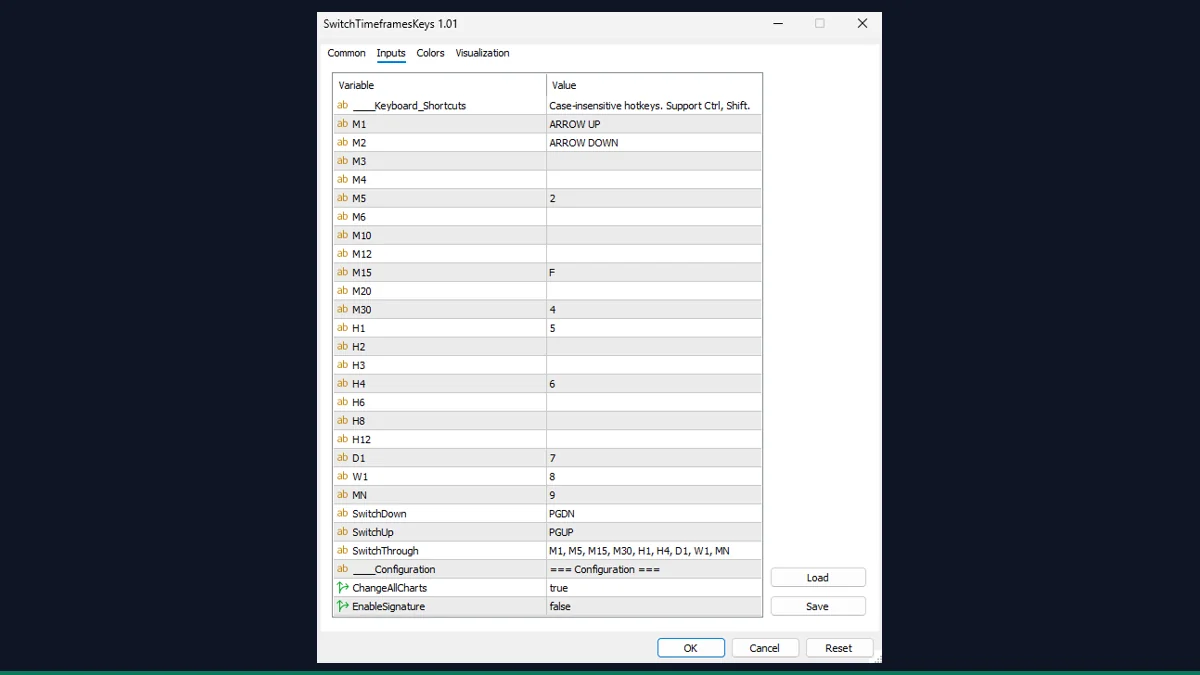
Switch Timeframes by Keys
Hotkey timeframe switching: press a number key to jump straight to M1 through MN.
Synced Crosshair
A crosshair that mirrors across every open chart so you read the same moment on all of them.
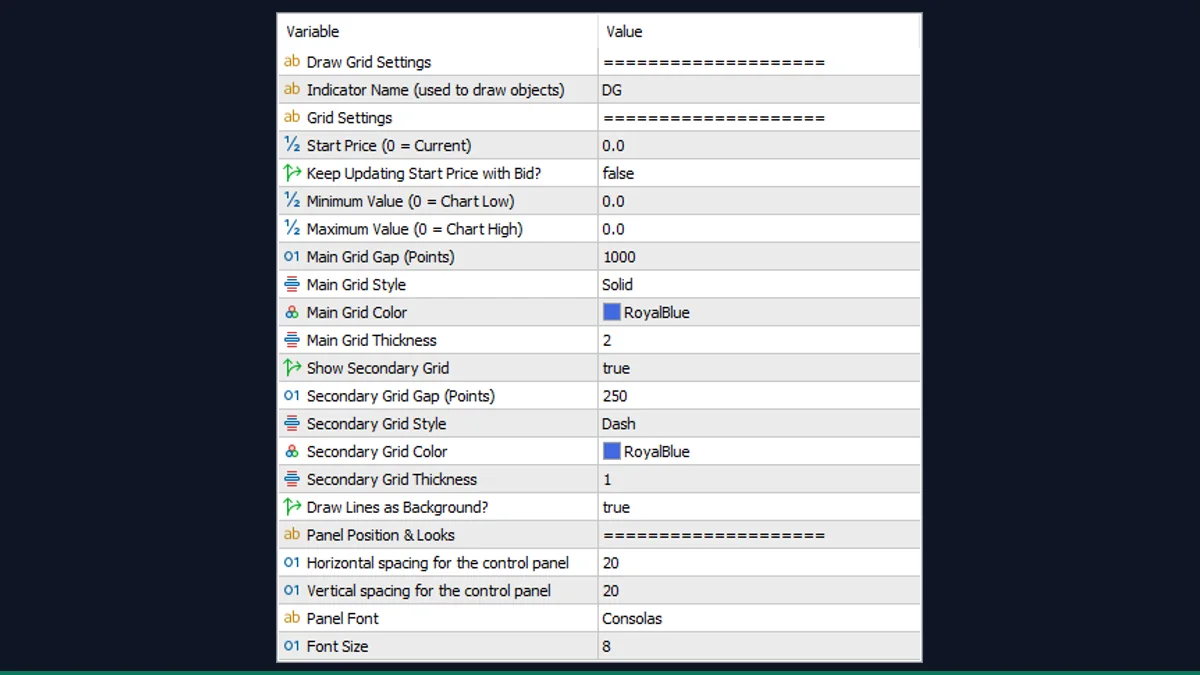
Draw Grid
Draws an evenly-spaced horizontal price grid at a pip step you choose, for scalping levels.