How to install indicators on MetaTrader 4
Updated 2026-06-09
Unzip the file, open File then Open Data Folder in MT4, drop the .mq4 into MQL4/Indicators (and any .mqh into MQL4/Include), refresh the Navigator, then drag the indicator onto a chart. The whole thing takes under a minute once you know where the data folder is.
Installing a custom indicator on MetaTrader 4 trips people up for one reason: the folder MT4 actually reads from is not the folder you installed the program into. Use the platform's own shortcut to find it and the rest is easy.
Install a custom MT4 indicator, step by step
- Unzip the download first. MetaTrader cannot read an indicator that is still inside a zip. Extract it so you can see the .mq4 (and sometimes an .ex4 or a .mqh) file.
- Open the data folder from inside MT4. In MetaTrader 4 go to File then Open Data Folder. This opens the exact folder MT4 reads, do not try to guess the path in Program Files, on modern Windows it lives somewhere else entirely.
- Go into MQL4 then Indicators. Copy the .mq4 file in here. If the download came with an
Includefolder or a .mqh file, copy that into MQL4 then Include so the indicator can compile. - Refresh the Navigator. Back in MT4, right-click the Navigator panel (press Ctrl+N if it is hidden) and choose Refresh, or simply restart MetaTrader 4.
- Drag it onto a chart. Find the indicator under Navigator then Indicators and drag it onto any chart, or double-click it. In the dialog, check the inputs, then click OK.
.mq4 vs .ex4: which file do you actually need?
An .mq4 is the human-readable source; MetaEditor compiles it into an .ex4 that the terminal runs. If you only have an .mq4, MT4 compiles it automatically the first time you load it. If you only have an .ex4 it still runs, you just cannot read or edit it. Every download on this site includes the .mq4 source, so you always get the editable version, never an .ex4-only black box.
The mistakes that stop an indicator loading
- Wrong folder. Files dropped into the MT4 program folder instead of the data folder will never appear. Always use File then Open Data Folder.
- Forgot the include file. If an indicator needs a .mqh and you only copied the .mq4, it will fail to compile. Copy the whole download, including any Include folder.
- Did not refresh. New files do not appear in the Navigator until you refresh it or restart MT4.
- Portable mode. If you launched MT4 with the /portable switch, the data folder is inside the MT4 program folder instead of the usual location. File then Open Data Folder still takes you to the right one.
If the file is in the right place and the indicator still will not show up, work through the dedicated indicator-not-showing troubleshooting guide.
MT4 install questions
Where is the MetaTrader 4 data folder?
Open MT4 and use File then Open Data Folder. On modern Windows the real folder is under your user AppData, not in Program Files, so the in-platform shortcut is the only reliable way to find it. The indicators live in MQL4/Indicators inside it.
Do I copy the .mq4 or the .ex4?
Either will run. The .mq4 is the editable source and MT4 compiles it for you on first load; the .ex4 is the compiled version. Our downloads include the .mq4 source so you always have the readable file.
Why does the indicator say it cannot compile?
Almost always a missing include. If the download came with an Include folder or a .mqh file, copy it into MQL4/Include, then re-open the indicator. The downloads on this site bundle every include the file needs.
Do I need to restart MT4 after installing?
Not strictly. Right-clicking the Navigator and choosing Refresh is usually enough. A restart is the reliable fallback if Refresh does not surface the new file.
Free tools to start with
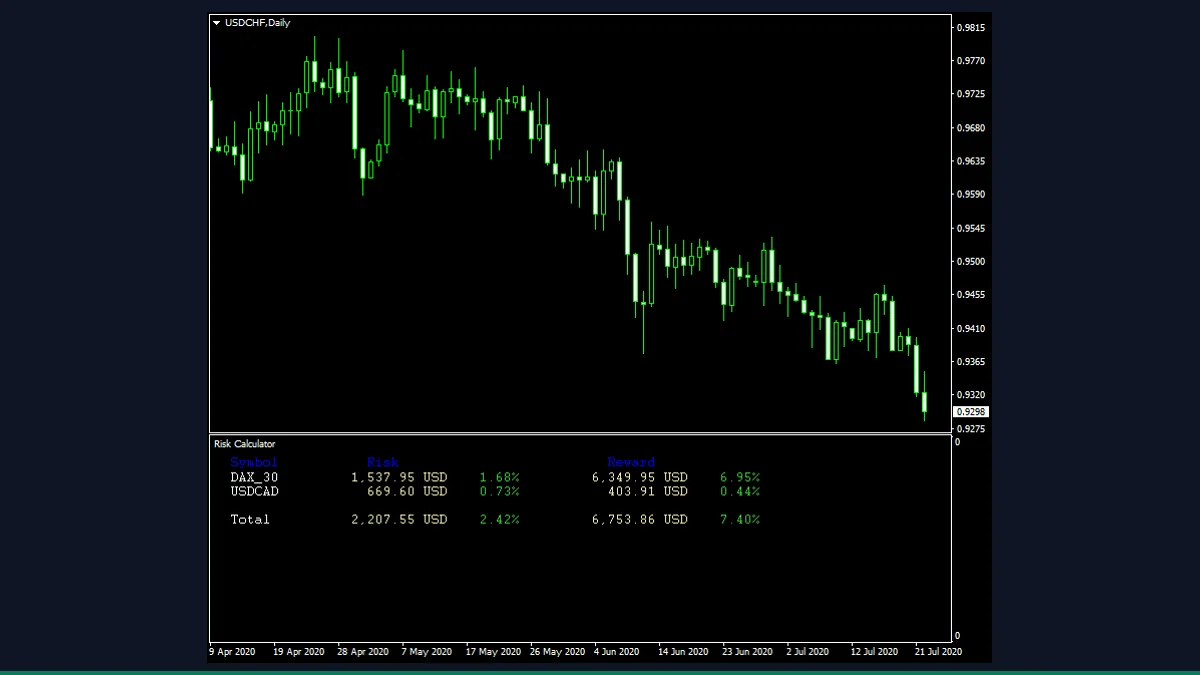
Risk Calculator
Reads your open and pending orders to show total risk and reward in both money and percent.
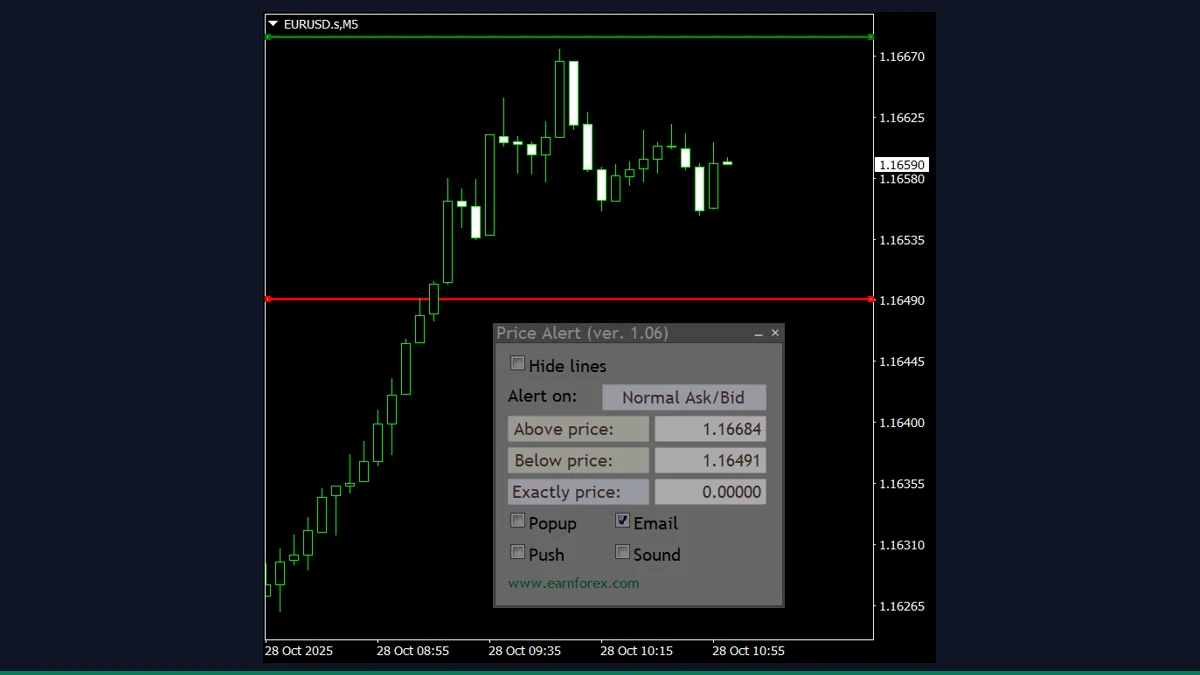
Price Alert Panel
Set price, indicator and time alerts from an on-chart panel with pop-up, email and push.
Trade Info Panel
An on-chart dashboard of balance, equity, floating P/L, margin and spread, all in one panel.